Viewing Package Details
The package details page shows everything Posit Package Manager knows about a single package across an R, Bioconductor, Python, or Open VSX repository. Use it to inspect a package before installing it, copy install commands, audit security and licensing, browse historical versions, and follow links out to upstream sources.
To open it, search or browse packages on the Packages page (see Searching for Packages) and select a result.
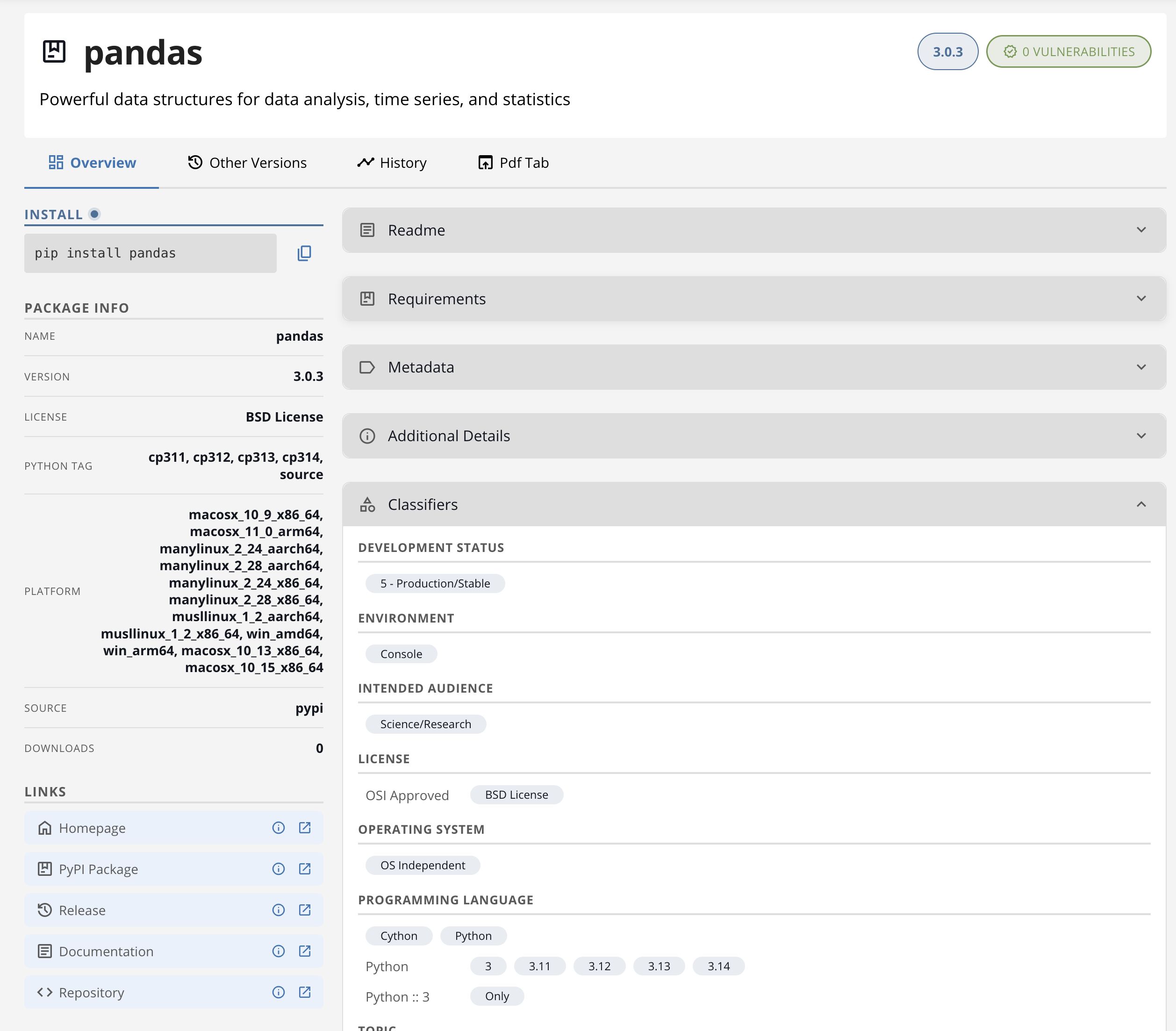
Page anatomy
The page uses a two-column layout below a row of tabs:
- Sidebar — at-a-glance facts. Install code, publisher, license, links, identifiers, downloads, and other reference data.
- Main column — expandable sections that carry the bulk of the content. README, dependencies, vulnerabilities, metadata, and so on. Expandable sections remember their open and closed state across page refreshes for the rest of your browsing session.
- Tab row — switches the layout between different views of the same package.
The exact contents of the sidebar and main column depend on the package type. Each tab subsection below explains what changes per repository type.
Tabs
Every package details page has at least one tab — Overview — and may also have several others depending on the repository type and the package itself.
| Tab Name | When it appears | What it shows |
|---|---|---|
| Overview | Always | The default view: install code, key facts, README, dependencies, vulnerabilities. |
| Other Versions | Always | Every release of the package this repository serves. |
| History | R, Bioconductor, and Python repositories | A chronological timeline of when each version became available, with snapshot URLs for reproducibility. |
| Changelog | Open VSX extensions that publish a changelog | The extension’s release notes, rendered inline. |
| Custom Tabs | Packages with tab.* metadata configured by an administrator |
Administrator-configured links or embedded views, one tab per metadata entry. |
The Overview and Other Versions tabs are always present. Other tabs only appear when there is something to show — for example, the Changelog tab is hidden on extensions that do not publish a changelog file.
Returning to search
A Back to Search Results button at the top of the page returns you to the search list with your query and page number preserved. If you arrived at the page from a direct link instead of a search, the button reads View All Packages (or View All Extensions for Open VSX) and takes you to the unfiltered list.