History Tab
The History tab on the package details page provides a chronological timeline of every change that affected a package’s availability. Use it to understand when each version became available, which source provides it, and to get snapshot URLs for reproducible environments.
Unlike the Activity Log, which shows repository-wide changes per source, the History tab focuses on a single package across all sources. It shows the historical source priority as it was at each point in time — not just the current state — so you can trace exactly how source and version changes affected what was served.
The History tab is available for R, Bioconductor, and Python packages. It is not shown on Open VSX extensions, which track their release history through the Other Versions tab and the Changelog tab instead.
Accessing the history tab
- Navigate to a package details page (see Viewing Package Details).
- Click the History tab.
Understanding the timeline
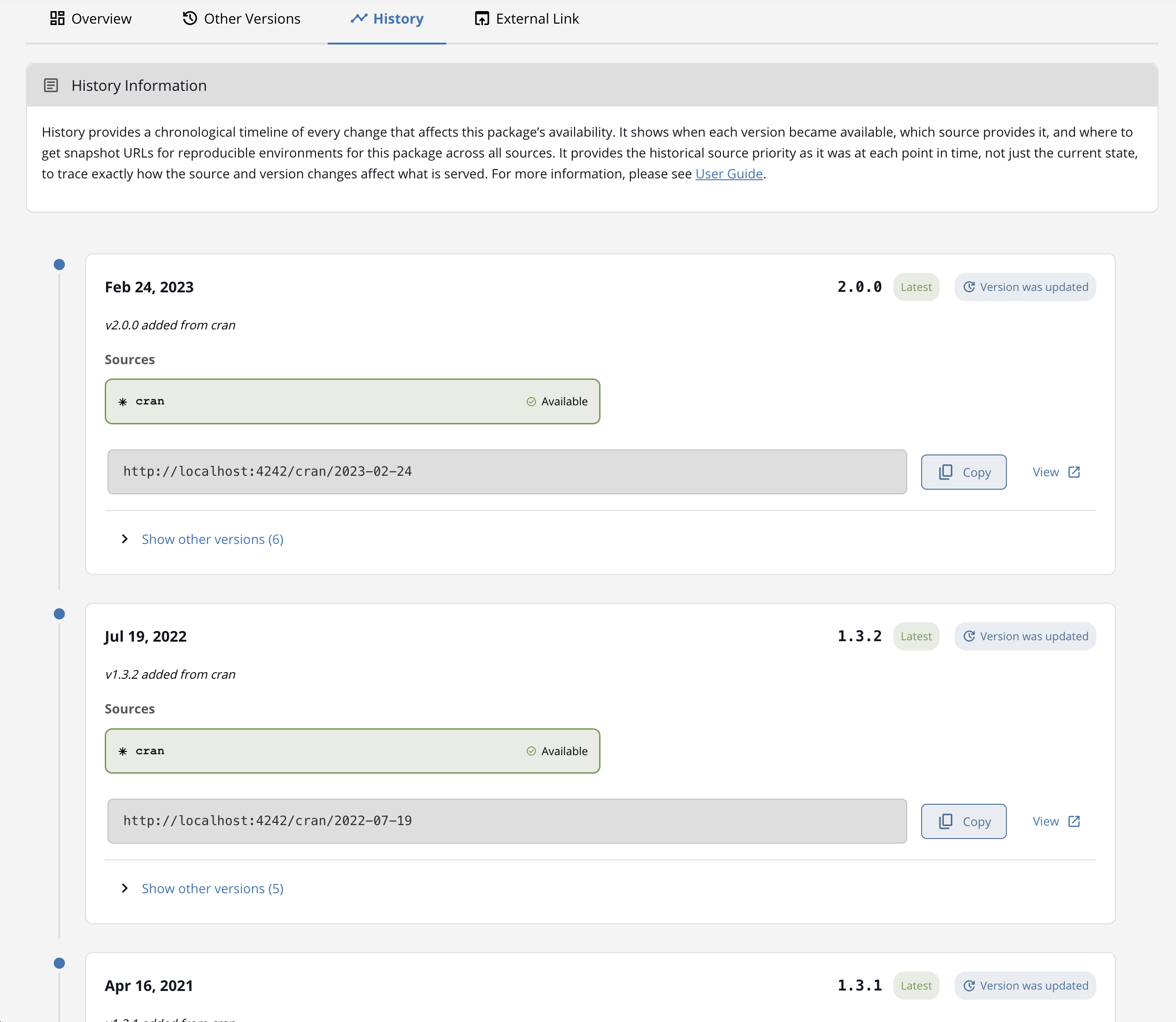
The timeline displays vertically with the most recent dates at the top and oldest at the bottom. Each entry represents a snapshot date — a point in time when something changed for this package.
Each timeline entry shows:
- Date and a change description summarizing what happened
- Latest version at that date, with source status badges
- Snapshot URL for that date, with a Copy button and a View Snapshot Packages link
- An expandable section showing other versions available at that date
What triggers a new timeline entry
The following events create new entries in the timeline:
- A new package version is added from a source — for example, a CRAN (Comprehensive R Archive Network) or PyPI (Python Package Index) sync brings a newer version. The change description reads something like “v2.0.0 added from CRAN”.
- A source is subscribed (added) to the repository — for example, an admin adds a new local source. The change description reads something like “my-local-source added”.
- A source is unsubscribed (removed) from the repository — the change description reads something like “my-local-source removed”.
- Sources are reordered — an admin changes the source priority order. The change description reads “Sources reordered”.
- Multiple versions added on the same date — for example, a bulk upload to a local source. The change description reads something like “v2.0.0, v1.5.0 and v1.0.0 added”.
Adding a new package version does not change older snapshot dates. Each snapshot is a fixed point in time. If you need access to a version that was added later, use a newer snapshot date.
Understanding source status badges
Each version in the timeline displays a status badge for every source that contains the package. The badges indicate how the version is served at that snapshot date:
| Status | Color | Meaning |
|---|---|---|
| Available | Green | This version is served from this source at this snapshot date |
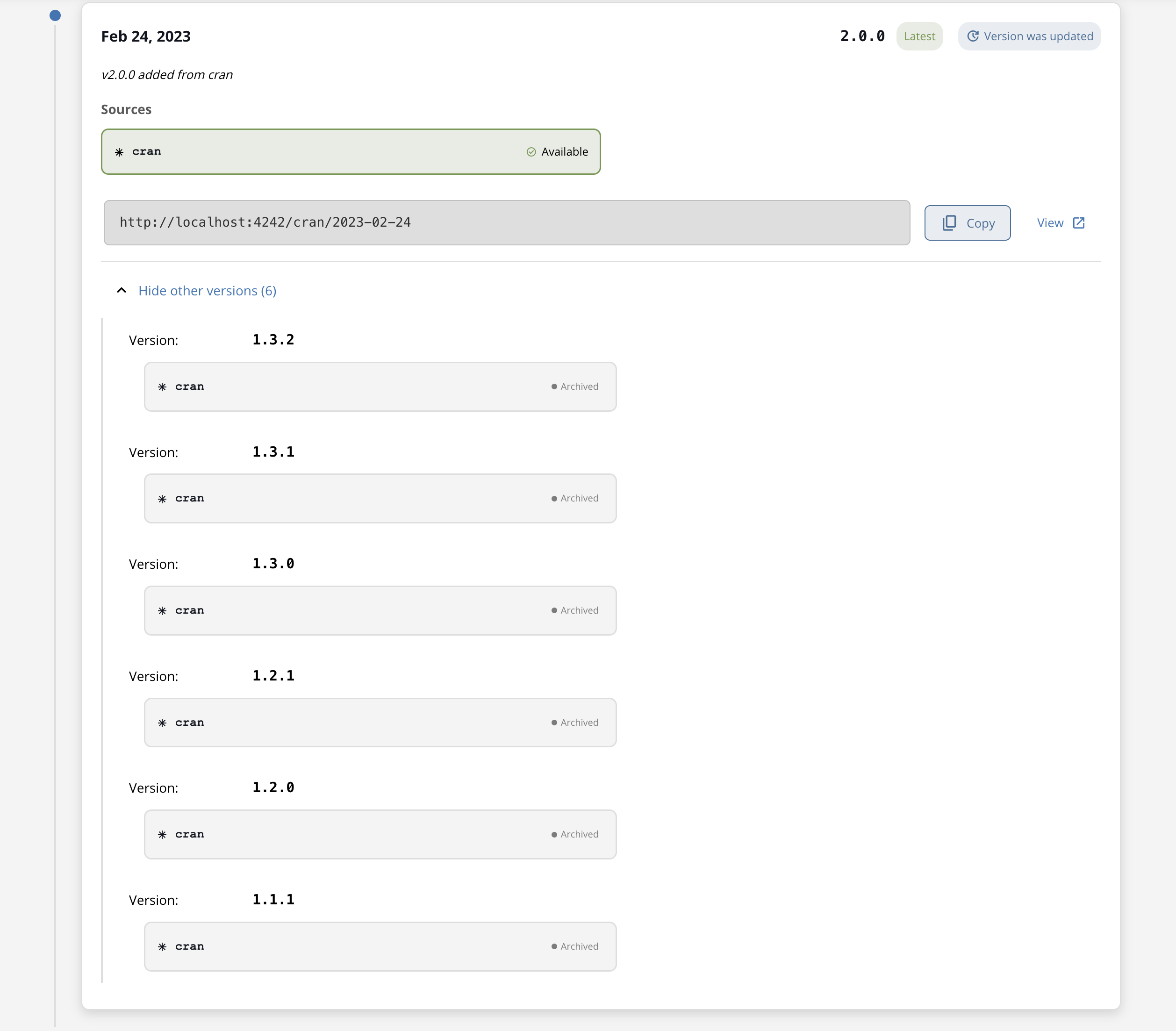
| Archived | Gray | This version exists in this source but a newer version is now the latest (R repositories only) |
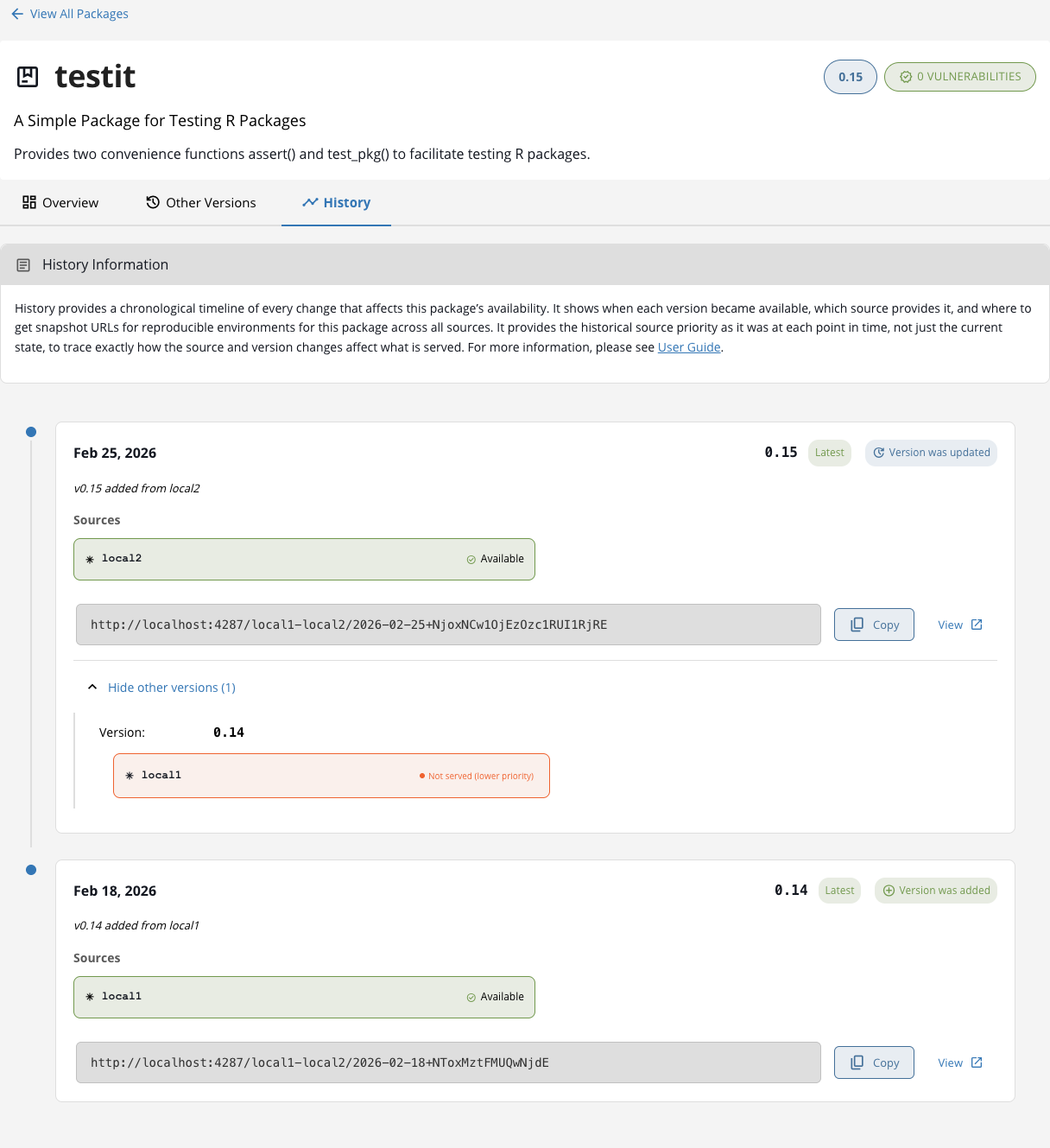
| Not served (lower priority) | Orange | This version exists in this source, but another source with higher priority provides a different version |
In R repositories, you can only install the latest version of a package via install.packages(). Older versions from the same source are shown as Archived in the “other versions” section.
In Python repositories, you can install all versions via pip install package==version. Both current and older versions show as Available. The “other versions” section shows older versions that are still installable.
The following examples show the different source status badges in action:
A higher-priority source provides a newer version. Here, version 0.15 is Available from the higher-priority local2 source. Expanding the other versions shows that local1 also has version 0.14, but it is marked Not served (lower priority) because local2 now provides a newer version at this snapshot date.
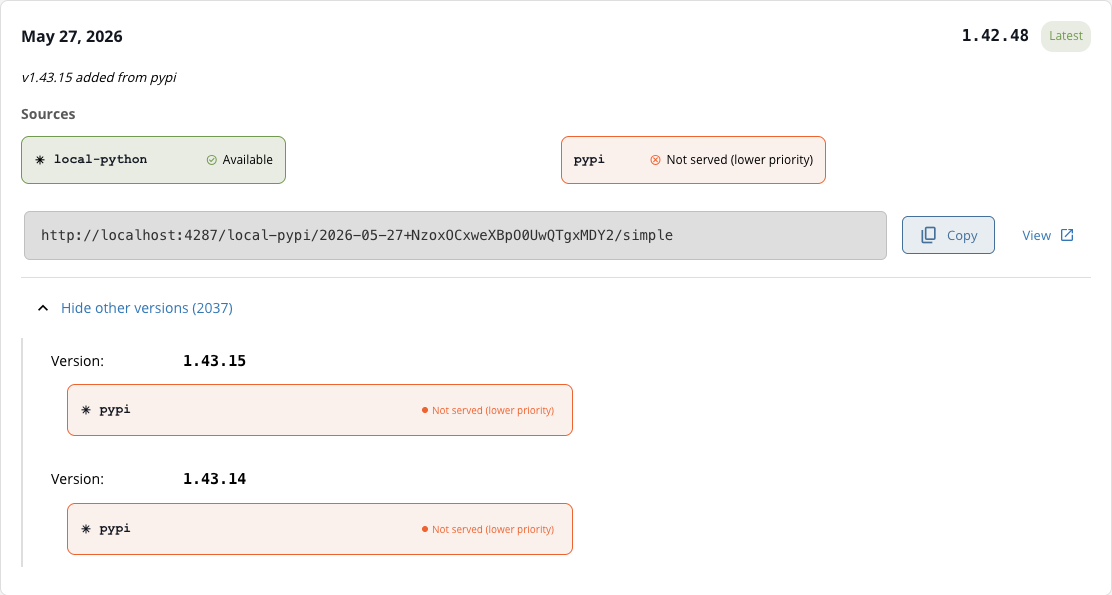
Two sources have the same version. Both local-python and pypi contain version 1.42.48, but only local-python serves it because it has higher priority. The change description (“v1.43.15 added from pypi”) indicates that a pypi sync brought in a newer version, but priority means local-python continues to be served at this snapshot date.
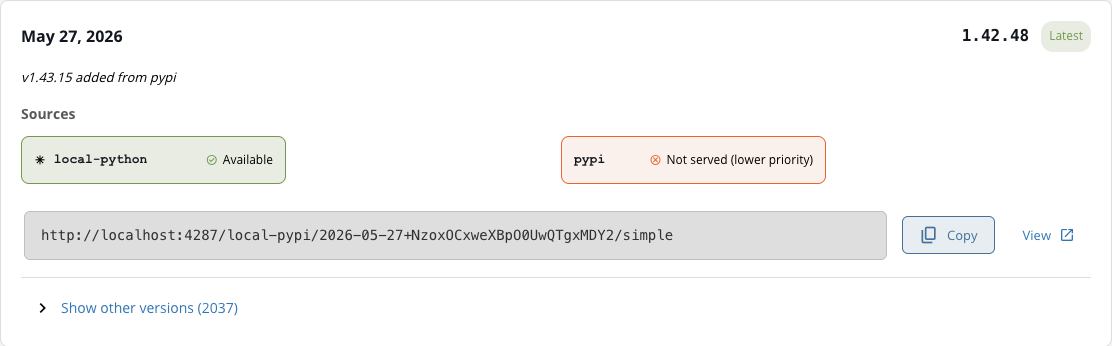
Other versions reveal what is not served. Expanding the other versions section reveals all versions that exist from each source at this snapshot date, including newer versions from the lower-priority pypi source that are not being served. Each row shows the version, the source, and the source status badge.
Understanding source priority
When a repository has multiple sources containing the same package, the source listed first (highest priority) determines which version is served. The History tab shows the source priority as it was at each snapshot date, not the current priority.
If an admin reorders sources, the timeline shows a “Sources reordered” entry. Entries after that date reflect the new priority order. A version marked “Not served (lower priority)” means it exists in a source, but another higher-priority source provides a different version at that date.
For more details on how source priority works, see Repositories with Multiple Sources.
Source priority can change over time. Look at the source status badges across different dates to understand how priority changes affected which version was served.
Using snapshot URLs for reproducibility
Each timeline entry includes a snapshot URL that pins your environment to the exact set of packages available at that date. The snapshot row exposes two actions:
- A Copy button next to the snapshot URL — copies the URL to your clipboard.
- A View link (rendered with an open-in-new icon) — opens the snapshot’s package index in a new browser tab.
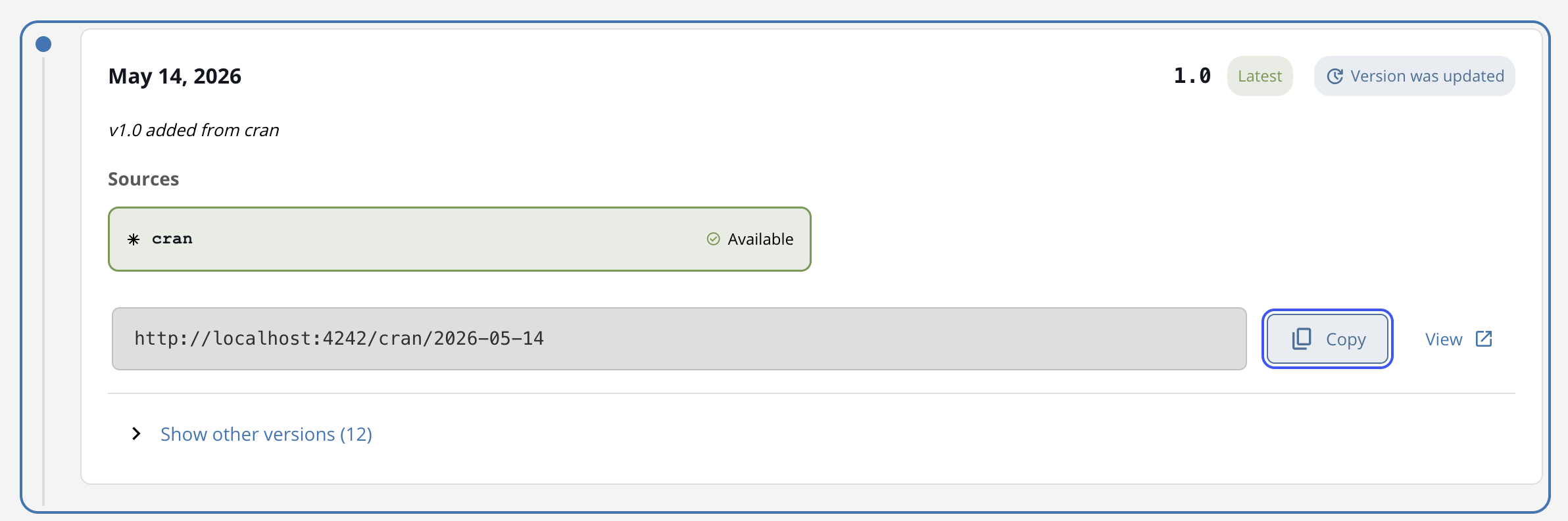
Use the snapshot URL in your renv.lock, requirements.txt, or R/Python configuration to pin to a reproducible set of packages. For more details on configuring frozen URLs, see Getting frozen URLs for improving reproducibility.
If you need a specific version of a package, find a snapshot date in the History timeline where that version was the latest, then use that snapshot URL for your environment configuration.
Browsing snapshot packages with the View link
The View link opens the snapshot’s raw package index — the same index your package manager fetches when resolving installs against the snapshot URL. Useful for confirming a snapshot actually serves the package and version you expect before pinning your environment to it. The destination depends on the repository type:
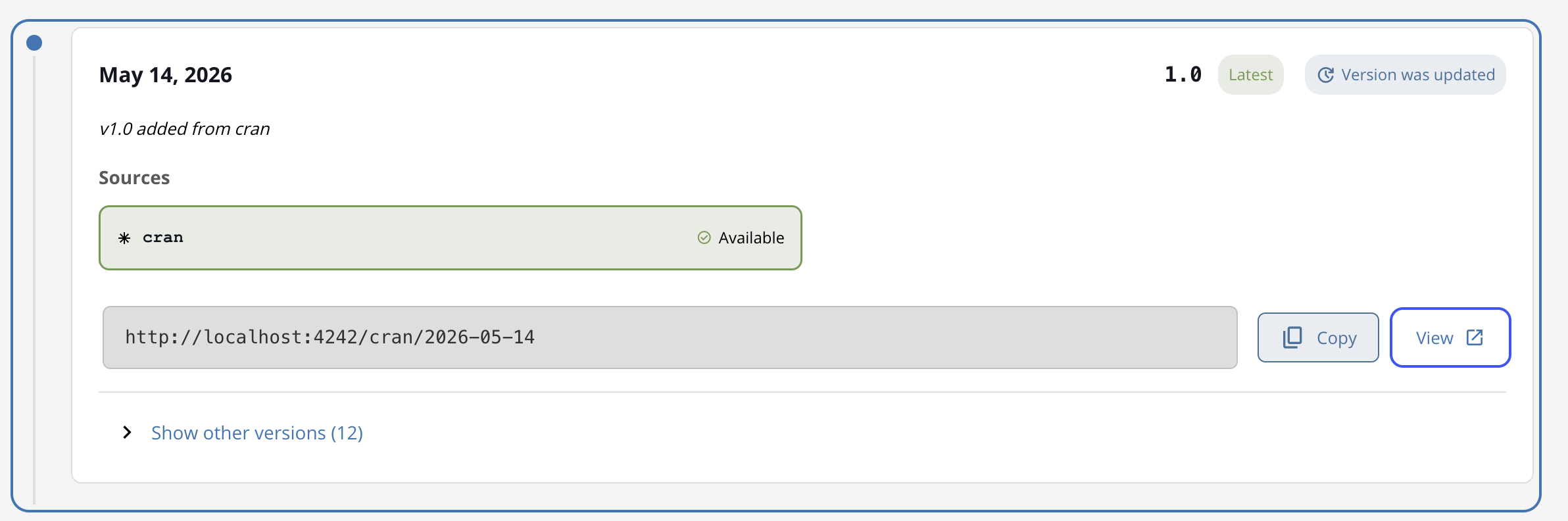
For R repositories, the link opens the PACKAGES file at the snapshot date:
<snapshot_url>/src/contrib/PACKAGESThis is the manifest that install.packages() parses when resolving against the snapshot URL.
For Python repositories, the link opens the PyPI simple index at the snapshot date:
<snapshot_url>/simple/This is the index that pip install browses when resolving against the snapshot URL — each package is a clickable link to its distribution list.
For Bioconductor repositories, the link opens the PACKAGES file scoped to your currently-selected Bioconductor version:
<snapshot_url>/packages/<bioc_version>/bioc/src/contrib/PACKAGESIf no Bioconductor version is selected, the link falls back to the bare snapshot URL.
The View link is hidden on snapshots where the package was blocked or yanked at the snapshot date, since the index will not serve those packages. The snapshot URL itself is also hidden in that case — the timeline row instead surfaces the block or yank reason inline.
Expanding other versions
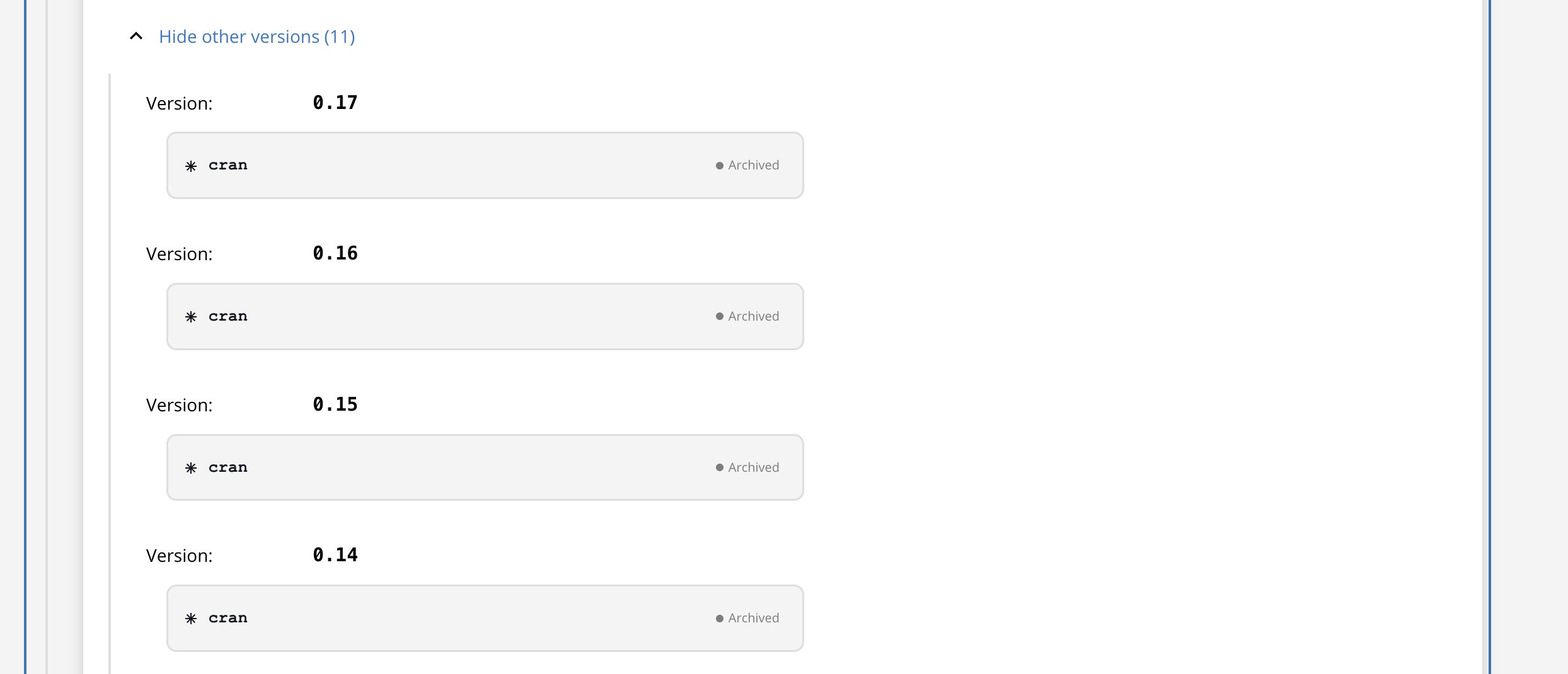
Click Show N other versions available to expand the list of all other versions that existed at a given snapshot date. Each row shows the version number, the source it comes from, and the source status badge.
This section is useful for understanding which versions are available across all sources at a given snapshot date, including archived versions from the same source and versions from lower-priority sources that are not being served.
Pagination
The timeline loads 20 entries at a time, sorted newest-first. Click Load More at the bottom to load older entries.