Configuring R Environments
Once you have obtained the repository URL, your environment must be configured to use the URL to download and install packages.
Base R
To configure R to use Package Manager as its CRAN repository, set the repos option to use the repository URL:
R
options(repos = c(CRAN = "https://packagemanager.posit.co/cran/__linux__/rhel9/latest"))Alternatively, instead of replacing your default URL, additional repositories can be added to your existing configuration. For example:
R
local({
  repos <- c(PackageManager = "https://packagemanager.posit.co/cran/__linux__/rhel9/latest")
  repos["LocalPackages"] <- "https://packagemanager.posit.co/local/__linux__/rhel9/latest"

  # add the new repositories first, but keep the existing ones
  options(repos = c(repos, getOption("repos")))
})

# verify the current repository list
getOption("repos")
Result:
                                                PackageManager
 "https://packagemanager.posit.co/cran/__linux__/rhel9/latest"
                                                 LocalPackages
"https://packagemanager.posit.co/local/__linux__/rhel9/latest"
                                                         CRAN
                                 "https://cloud.r-project.org"
The same code can be added to your R startup file (~/.Rprofile) to maintain the repository configuration across R sessions. See our article on managing R startup files for more information.
If your repository requires authentication, follow the additional steps to configure R to use authenticated repositories.
If you are installing packages on Linux and want to take advantage of pre-built binary packages for speed and reliability, follow the instructions in Configuring the R User Agent Header to set up or verify your configuration.
RStudio IDE
In the RStudio IDE, repository settings are configured through the Global Options menu available from the Tools section of the main toolbar.
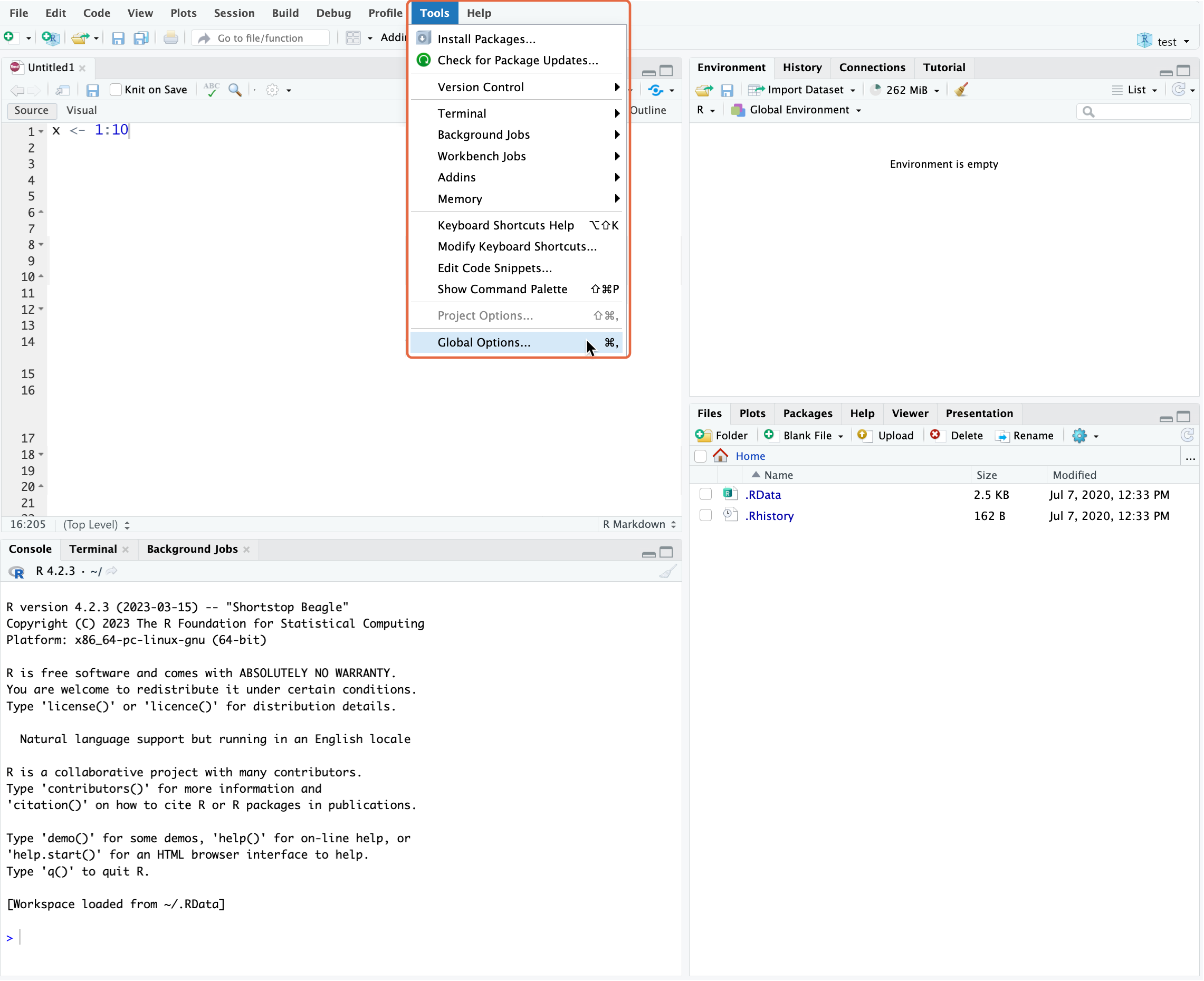
If your repository requires authentication, follow the steps to configure R to use authenticated repositories before proceeding.
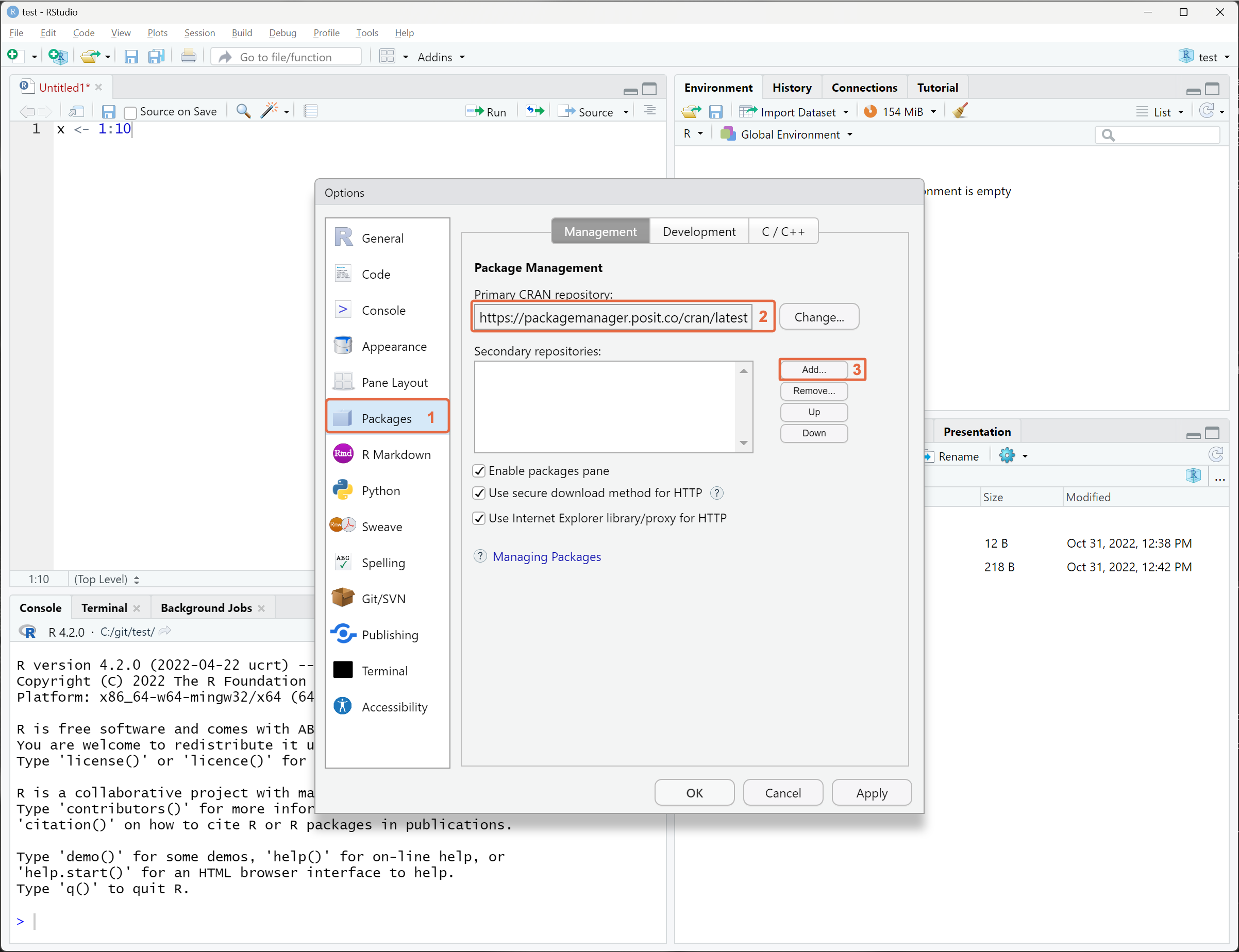
From the left pane, click Packages 1, paste the repository URL into the Primary CRAN repository field 2 or click Add 3 to include this repository as a secondary repository.
If you are using RStudio from Posit Workbench, your administrator can also configure the default repository for all users. See Configuring Posit Workbench for more information.
Positron
Positron only supports R 4.2 and higher.
Positron provides built-in settings for configuring R package repositories.
Option 1: Use Posit Public Package Manager
If you are using the public Posit Package Manager instance at https://packagemanager.posit.co:
- Open Positron Settings.
- Configure the
positron.r.defaultRepositoriessetting to use"posit-ppm". - Restart Positron.
Option 2: Use an internal Posit Package Manager
If your organization runs an internal Package Manager instance:
- Copy your repository URL.
- Open Positron Settings and confirm that
positron.r.defaultRepositoriesis set to"auto". - Navigate to the
positron.r.packageManagerRepositorysetting and override the default URL with your copied repository URL. - Restart Positron.
Option 3: Configure base R directly
Positron also supports configuring repositories using the standard R repos option. Refer to the instructions for configuring base R.
If your repository requires authentication, follow the additional steps to configure R to use authenticated repositories.
If you are using Positron from Posit Workbench, your administrator can also configure the default repository for all users. See Configuring Posit Workbench for more information.
Bioconductor
The Setup page in Package Manager generates these settings for you and is the best place to get them. This section explains what they do.
R’s built-in install.packages needs no Bioconductor-specific configuration. Point repos at the Bioconductor sub-repository you want, along with a CRAN repository to satisfy CRAN dependencies.
BiocManager needs two settings. It discovers which Bioconductor releases a repository offers by reading a config.yaml document, and it does not derive that document’s location from the mirror it is pointed at. Without BIOCONDUCTOR_CONFIG_FILE it reads a hardcoded bioconductor.org URL instead:
R
Sys.setenv(BIOCONDUCTOR_CONFIG_FILE = "https://packagemanager.example.com/bioconductor/latest/config.yaml")
options(BioC_mirror = "https://packagemanager.example.com/bioconductor/latest")

library(BiocManager)
BiocManager::install("DESeq2")
A repository serves the same config.yaml with or without the latest segment, so a snippet written either way works. Use the form the Setup page generates for your repository.
Set BIOCONDUCTOR_CONFIG_FILE before library(BiocManager), either as an environment variable as above or as an R option. BiocManager honors both, and reads the configuration once, when its namespace is attached. Setting it afterward does not change which releases BiocManager believes the repository offers. The one exception is a host that cannot reach the URL it would otherwise read, including an air-gapped host that cannot reach bioconductor.org: BiocManager caches the release list only when it reads one successfully, so after a failed read a later Sys.setenv() does take effect. Set it before library(BiocManager) regardless, so that the outcome does not depend on which read failed. BiocManager re-reads BioC_mirror whenever it needs it, so you can set that one later.
On Windows and macOS the BioC_mirror above installs binaries when they are available, because R appends a binary path of its own to it. On Linux it always installs from source. Package Manager serves a Linux binary only for a URL that names your distribution and architecture, so add an environment segment on Linux:
R
# Ubuntu 24.04 (Noble):
options(BioC_mirror = "https://packagemanager.example.com/bioconductor/__linux__/noble/latest")
Leave BIOCONDUCTOR_CONFIG_FILE on the plain URL either way. Do not add an environment segment on Windows or macOS, where there is none to add and none is needed. The Setup page generates the correct form for the distribution you select. See Using Linux Binary Packages.
Do not set R_BIOC_VERSION. It pins the release outright and bypasses config.yaml, which is what lets BiocManager choose a release your repository serves.
Checking that BiocManager read your configuration
BiocManager::version() reports the release BiocManager chose from the config.yaml it loaded:
R
BiocManager::version()If it names a release your repository does not offer, or reports that the Bioconductor version cannot be validated, BiocManager did not read your document. Check that BIOCONDUCTOR_CONFIG_FILE was set before library(BiocManager) and that the URL is reachable.
At a frozen snapshot URL this check has an exception. BiocManager can name a release the URL does not serve even when it read your document correctly. A pinned document leaves only the pinned release with a real R version, which is what produces that result.
Do not use BiocManager::repositories() for this check. Its URLs come from BioC_mirror, so they can name your server while the release list still came from bioconductor.org.
BIOCONDUCTOR_CONFIG_FILE breaks on Bioconductor’s schedule
Left unset, BiocManager reads bioconductor.org’s release list and chooses whichever release is current upstream. On a host with internet access, that need not look wrong: if upstream’s current release happens to be one your repository serves, installs succeed and nothing indicates the variable was never set. When Bioconductor publishes its next release, upstream moves ahead of your repository and every client with the variable unset starts choosing a release the repository does not serve. A whole fleet can be misconfigured for months, appear healthy, and stop working at once, with no change on your side. Check with BiocManager::version() rather than waiting for an install to fail.
What a client sees once that happens depends on the repository. A curated Bioconductor repository returns a 404 naming the versions it does serve. A mirrored Bioconductor repository returns an HTTP 400 with an HTML error page and no version list. Neither response mentions BIOCONDUCTOR_CONFIG_FILE, so neither points at the cause.
On a host that cannot reach bioconductor.org, an unset variable fails at once instead, with Bioconductor version cannot be validated; no internet connection? and an empty release list. In an air-gapped installation that is the normal case, which makes setting the variable to your Package Manager config.yaml a requirement rather than a refinement.
Setting the variable to a URL that does not serve a configuration document produces that same message, and the message cannot tell the two apart: a 404 from a running Package Manager and a refused connection to a dead address give byte-identical output. It blames the network in both cases, so check that the URL is right before you investigate the network. What decides BiocManager’s behavior is whether it could read any configuration document, not which one you named.
Authenticated repositories
If your Package Manager repository requires authentication, you can configure R two ways. Fetch credentials from a single sign-on (SSO) provider (recommended if you use pak), or use an API token stored in a .netrc file.
You can use these methods with various R tools and IDEs, including install.packages(), devtools, rsconnect, renv, BiocManager, pak, RStudio, and Positron. Note that SSO only flows through pak-based workflows. All other R tools continue to require a .netrc file.
Some tools, such as renv and BiocManager, require additional configuration to use the .netrc file with curl. See Additional configuration for renv, BiocManager, and pak for details.
Using single sign-on (SSO)
If your server has been configured with an OpenID Connect provider, you can use pak version 0.10.0 or later to authenticate via your organization’s SSO provider.
SSO authentication only flows through pak-based workflows. install.packages(), renv, BiocManager, devtools, rsconnect, and the RStudio package pane all continue to require a .netrc file. See Using API tokens below if you use those tools.
Install
pakfrom a non-authenticated source such as Posit Public Package Manager. If your only configured repository is the authenticated one, installpakdirectly from Posit Public Package Manager first:R
install.packages("pak", repos = "https://p3m.dev/cran/latest")Set the
PACKAGEMANAGER_ADDRESSenvironment variable to the URL of your Package Manager instance. Add this line to your~/.Renvironfile (or set it in your shell profile on macOS or Linux, or in your System or User environment variables on Windows):~/.Renviron
PACKAGEMANAGER_ADDRESS=https://packagemanager.example.comConfigure
options(repos)to include your authenticated repository, using__token__as the username in the URL. Add this to your~/.Rprofileso it applies to every R session:~/.Rprofile
options(repos = c(
  PPM = "https://__token__@packagemanager.example.com/cran-auth/latest",
  getOption("repos")
))
Restart R, then trigger the login flow by installing a package with
pak:R
pak::pkg_install("shiny")pakdisplays a one-time device code in the R console and opens a browser tab for you to authenticate through your organization’s SSO provider, confirming the device code when prompted. After you authenticate,pakcaches the token at~/.ppm/tokens.toml.You can also trigger login explicitly without installing a package:
R
pak::ppm_sso_login()To inspect the cached token or check whether it is still valid, use
ppm_sso_status():R
pak::ppm_sso_status(connect = TRUE)To log out and remove the cached token, use
ppm_sso_logout():R
pak::ppm_sso_logout()
SSO tokens expire after a period configured by your administrator. When the cached token expires, the next pak operation against an authenticated repository automatically reopens the browser to re-authenticate. In headless or shared sessions, run pak::ppm_sso_status() first to check expiration.
The cached token at ~/.ppm/tokens.toml uses the same format as rspm login sso and the posit-keyring Python package. Logging in once with any of these tools makes the credential available to all three.
For more information, see Posit Package Manager SSO authentication and the ppm_sso_login() function reference in the pak documentation.
Using API tokens
If you use R tools other than pak (such as install.packages(), renv, BiocManager, devtools, or rsconnect), you need an API token stored in a .netrc file. You can obtain a token in one of two ways:
Option 1: Generate your own token via the CLI (recommended)
If your Package Manager instance is configured with OpenID Connect authentication, you can generate a short-lived token using the rspm CLI. This is the same SSO provider that pak uses. The token is stored at the same ~/.ppm/tokens.toml location, so a rspm login sso session and a pak::ppm_sso_login() session share state.
Download the standalone Package Manager CLI, ensuring that the CLI version matches the server version. You can find the download link in the Remote User Setup documentation or ask your administrator.
Set the server address and authenticate via SSO:
Terminal
export PACKAGEMANAGER_ADDRESS=https://packagemanager.example.com
rspm login sso
The
rspm login ssocommand will start a device authorization flow, display a URL and device code for you to enter, and authenticate you through your organization’s single sign-on provider.After successful authentication, your token will be stored in
~/.ppm/tokens.toml. You can view this file to retrieve your token:Terminal
cat ~/.ppm/tokens.tomlThe file will contain an entry like:
~/.ppm/tokens.toml
[tokens]
"https://packagemanager.example.com" = "your-token-here"
Copy the token value and use it in your
.netrcfile as described in the Configure R to use.netrcandcurlsection below.
SSO-generated tokens are typically short-lived and will expire. If you encounter authentication errors, you may need to run rspm login sso again to obtain a fresh token.
Option 2: Request a token from your administrator
Your Package Manager administrator can create a long-lived API token for you. Refer to Creating API Tokens for details that you can share with your administrator.
Configure R to use .netrc and curl
Create a
.netrcfile in your home directory at~/.netrc.Add the following content, replacing
[packagemanager.example.com]with your Package Manager server address and[your-token]with your actual token.~/.netrc
machine [packagemanager.example.com]
login __token__
password [your-token]
The machine field should not contain a protocol, port, or repository path. If your repository URL is https://packagemanager.example.com/cran/latest, use packagemanager.example.com for the machine field.
Since the credentials are stored in plaintext, ensure that the
~/.netrcfile is only accessible to you by running:Terminal
chmod 600 ~/.netrcConfigure R to use
curlas the download method by adding the following lines to your R startup file (~/.Rprofile).~/.Rprofile
# Use curl with a netrc file for authenticated repo access
options(download.file.method = "curl")

options(download.file.extra = paste(
  "--netrc",
  # Follow redirects, show errors, and display the HTTP status and URL
  '-fsSL -w "%{stderr}curl: HTTP %{http_code} %{url_effective}\n"',
  # Configure the R user agent header to install Linux binary packages
  sprintf('--header "User-Agent: R (%s)"', paste(getRversion(), R.version["platform"], R.version["arch"], R.version["os"]))
))
You will need additional configuration to install Linux binary packages with
curl, so that is also included here.
Create a
.netrcfile in your home directory at~/.netrc.Add the following content, replacing
[packagemanager.example.com]with your Package Manager server address and[your-token]with your actual token.~/.netrc
machine [packagemanager.example.com]
login __token__
password [your-token]
The machine field should not contain a protocol, port, or repository path. If your repository URL is https://packagemanager.example.com/cran/latest, use packagemanager.example.com for the machine field.
Since the credentials are stored in plaintext, ensure that the
~/.netrcfile is only accessible to you by running:Terminal
chmod 600 ~/.netrcConfigure R to use
curlas the download method by adding the following lines to your R startup file (~/.Rprofile).~/.Rprofile
# Use curl with a netrc file for authenticated repo access
options(download.file.method = "curl")

options(download.file.extra = paste(
  "--netrc",
  # Follow redirects, show errors, and display the HTTP status and URL
  '-fsSL -w "%{stderr}curl: HTTP %{http_code} %{url_effective}\n"'
))
Create a
.netrcfile in your home directory at~/.netrc. This may be your Documents folder (typicallyC:\Users\username\Documents). You can find the location by runningpath.expand("~/.netrc")in an R console.Add the following content, replacing
[packagemanager.example.com]with your Package Manager server address and[your-token]with your actual token.~/.netrc
machine [packagemanager.example.com]
login __token__
password [your-token]
The machine field should not contain a protocol, port, or repository path. If your repository URL is https://packagemanager.example.com/cran/latest, use packagemanager.example.com for the machine field.
Configure R to use
curlas the download method by adding the following lines to your R startup file (~/.Rprofile).~/.Rprofile
# Use curl with a netrc file for authenticated repo access
options(download.file.method = "curl")

options(download.file.extra = paste(
  "--netrc",
  # Follow redirects, show errors, and display the HTTP status and URL
  '-fsSL -w "%{stderr}curl: HTTP %{http_code} %{url_effective}\n"'
))
.netrc files only support configuring a single set of credentials per server. This means that if you have multiple repositories, you need to use the same token for all of them. The token must have access to each repository.
Additional configuration for renv, BiocManager, and pak
You can configure renv to use credentials from .netrc by adding the following line to your R startup file (~/.Rprofile).
~/.Rprofile
# Configure renv to install from authenticated repos
Sys.setenv(RENV_DOWNLOAD_METHOD = "curl")
To install packages from an authenticated Bioconductor repository, ensure you have BiocManager version 1.30.24 or later.
Once updated, follow the Setup page instructions in the Package Manager UI to configure your Bioconductor mirror in R.
pak is the recommended R tool for installing packages from authenticated Package Manager repositories. It supports authentication in two ways:
- SSO (recommended if your server has OpenID Connect configured): see Using single sign-on (SSO) above. No additional configuration is required.
- API tokens via
.netrcor the system keyring service: supported inpak0.9.0 and later. For details, refer to thepakdocumentation on Authenticated repositories.
Checking for Success
If you changed any R startup files (e.g., ~/.Rprofile), restart your R session to apply the changes.
For CRAN or internal package repositories, running getOption("repos") in R should show the URL of the Package Manager instance. For Bioconductor repositories, running getOption("BioC_mirror") should also show the URL of the Package Manager instance.
For a complete test, you can also confirm that packages are installed from the Package Manager instance by default. To test a CRAN or internal package repository, run the following commands to install a package in the repository:
R
# Show the configured repos
getOption("repos")

# Install a package in the repository, such as A3
install.packages("A3")
While you can install any package as a test, one that is small and has few dependencies will be the quickest. The A3 package on CRAN is the first alphabetically that meets this criteria.
To test the Bioconductor repository, you can download and install a Bioconductor package:
R
# Show the configured Bioconductor repo
getOption("BioC_mirror")

# Install the BiocManager package from CRAN
install.packages("BiocManager")

# Check that BiocManager read the release list from Package Manager
BiocManager::version()

# Install a Bioconductor package, then confirm it loaded. BiocManager::install()
# warns rather than fails when a package is unavailable, so checking the
# namespace is what turns a silent no-op into a failure.
BiocManager::install("BiocVersion", update = FALSE)
stopifnot(requireNamespace("BiocVersion", quietly = TRUE))
BiocManager::version() names a release your repository serves. Use it rather than BiocManager::repositories(), whose URLs come from BioC_mirror and can name your server while the release list still came from bioconductor.org. If it names a release your repository does not serve, see Checking that BiocManager read your configuration.
A curated Bioconductor repository offers only the packages its administrator selected. If BiocVersion is not one of them, the install warns that BiocVersion is not available, installs nothing, and the stopifnot above fails. Ask your administrator to add BiocVersion: BiocManager requests it on every install, so without it every install carries that warning even when it succeeds.