Overview and Navigation
The Package Manager home page displays a repository selection card, a search bar, and (when applicable) callouts to help you sign in or finish setup:
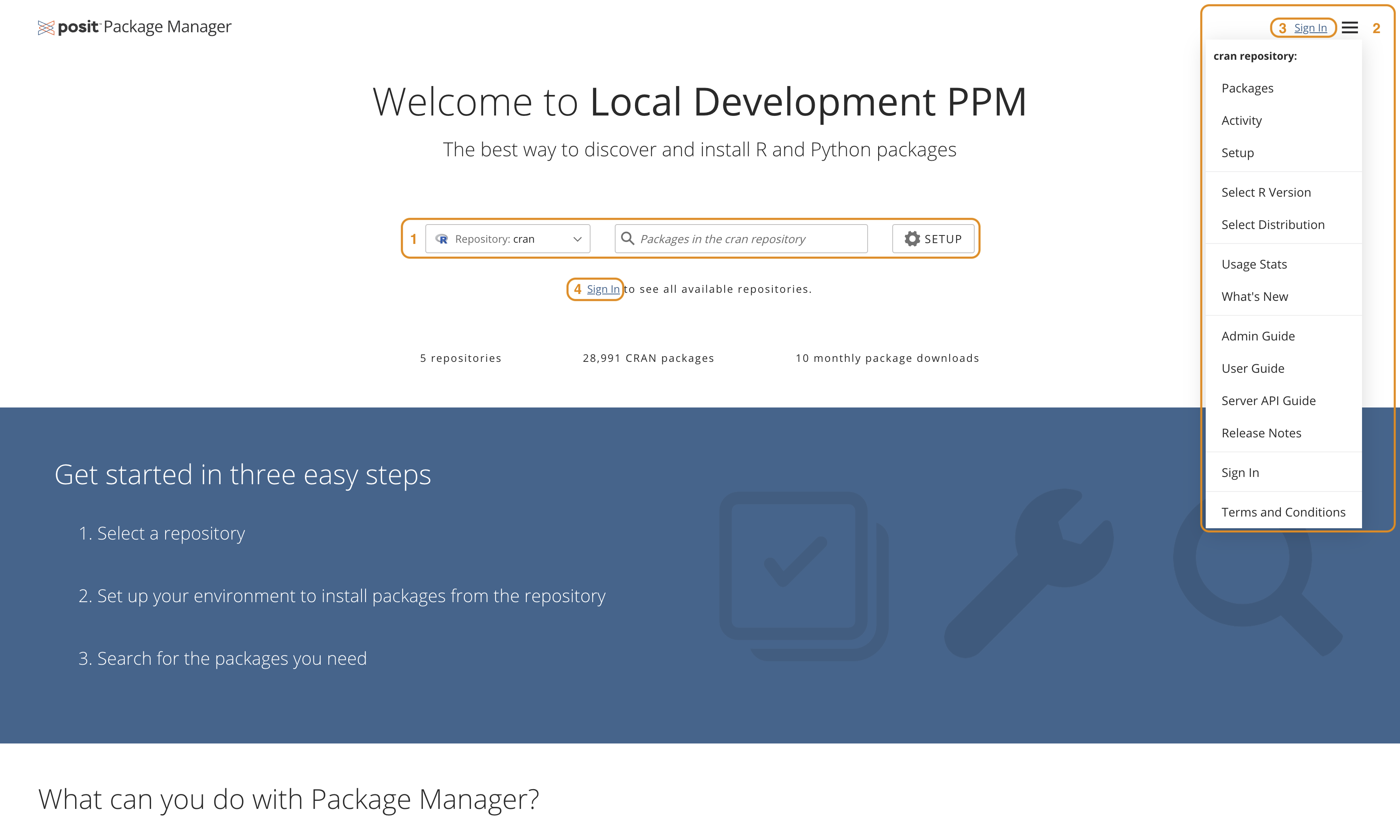
The repository selection card
The repository selection card 1 is the primary way to choose which repository you are working with. If no repository is selected, the card prompts you to pick one. Click the card to open the repository browser, where you can search and choose a repository in list, grid, or grouped view.
After you select a repository, the card shows its name, description, and icon. The footer of the card reports how many repositories are available.
Searching for packages
The search bar 3 below the repository selection card searches the selected repository. As you type, matching package (or extension) suggestions appear in a dropdown. Use the arrow keys and Enter to jump straight to a package, or click Browse all to see the full list.
Signing in
If any repository requires authentication and you are not signed in, a Sign In callout appears on the home page prompting you to sign in to see all repositories. Clicking Sign In opens a dialog where you can enter your credentials. A Sign In option is also available from the user menu in the top-right of the navigation bar. See Signing In for more information.
Configuring your environment
If the language for the selected repository (R or Python) is not configured on your system, a Configure callout 4 appears under the search bar. The callout includes a Configure Now link to the setup page. Select Maybe Later to dismiss the callout and configure later.