Custom Tabs
Posit Package Manager lets administrators add custom tabs to a package’s details page by attaching metadata to that package. This is useful for surfacing related documentation, custom dashboards, changelog renderers, or any external resource alongside the package.
How it works
When Package Manager renders a package’s details page, it scans the package’s custom metadata for keys prefixed with tab.. Each matching entry becomes a tab in the row above the package layout:
- The tab label is derived from the part of the key after
tab.. Hyphens and underscores become spaces, and each word is title-cased. Sotab.user-guidebecomes a tab labeled User Guide, andtab.setupbecomes Setup. - The tab content comes from the metadata value, which must be an HTTP or HTTPS URL.
Built-in tabs (Overview, Other Versions, History, Changelog) always render first. Custom tabs follow, grouped by type: all Embedded tabs render before any External tabs, regardless of the order their metadata entries were created in.
Embedded vs external tabs
Package Manager decides how to open each tab based on the target URL’s domain:
- External: URLs whose domain matches a built-in list of sites known to block iframe embedding. The list includes
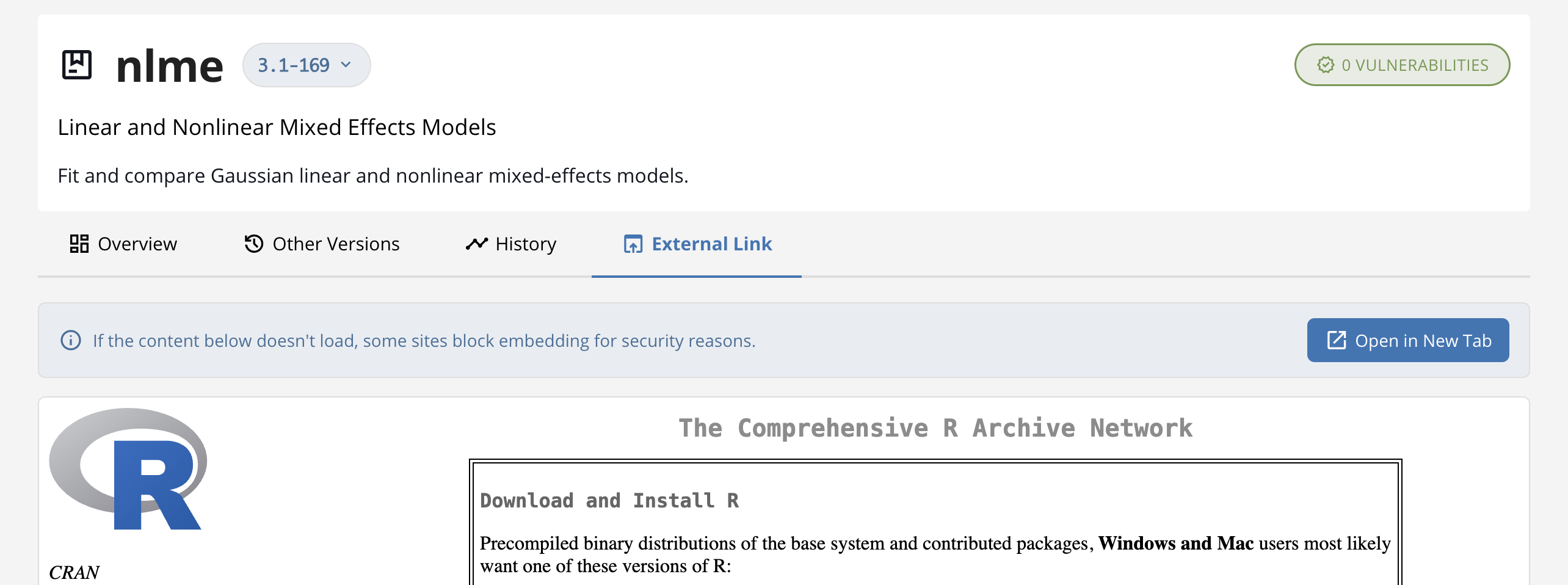
python.org,github.com,wikipedia.org,stackoverflow.com,medium.com,twitter.com,x.com,facebook.com,linkedin.com, andyoutube.com. These open in a new browser tab when the user clicks the tab. - Embedded: every other URL renders inline inside Package Manager, framed by an iframe.
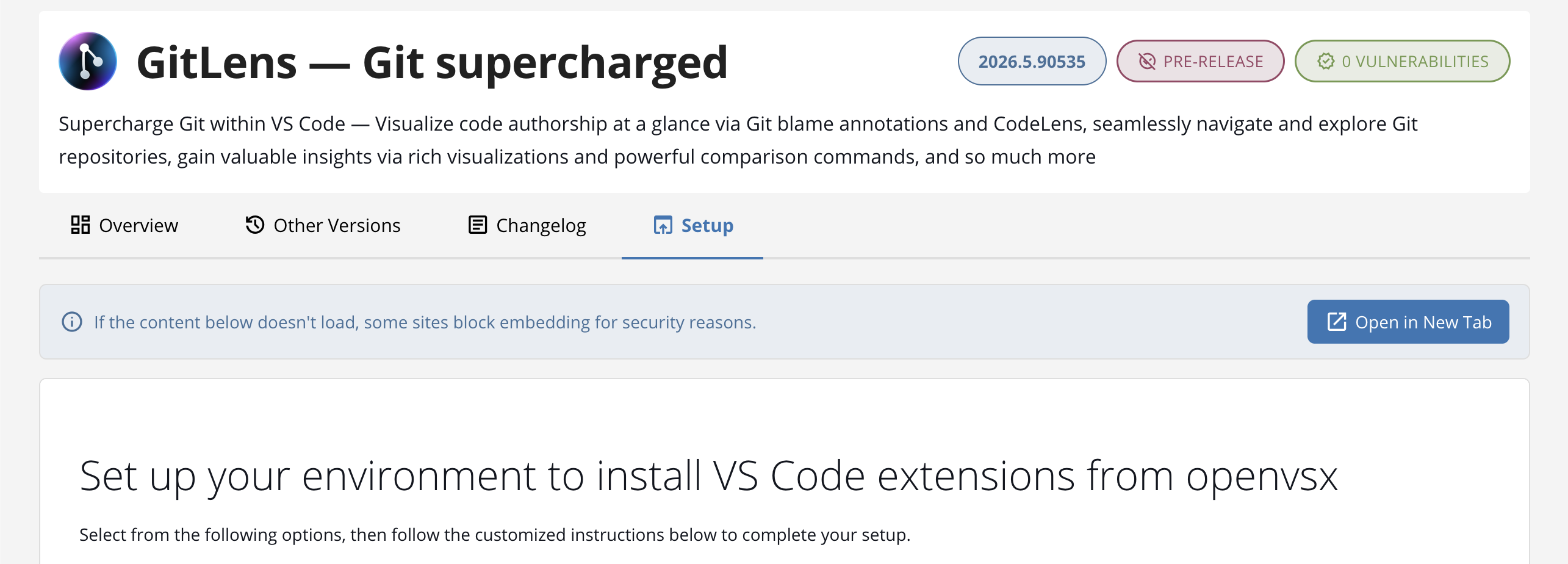
An “open in new window” icon marks external tabs so users know what to expect before clicking. Embedded tabs include a small info banner explaining that the content is loaded from an external site, and a fallback Open in New Tab button in case the embed fails — for example, if the target site sets X-Frame-Options: DENY or a CSP that blocks framing. The fallback appears after a 10-second timeout if the iframe never loads.
The known-blocker list is a best-effort shortcut to avoid the 10-second timeout on popular sites that we know do not allow embedding. If you point a custom tab at a site that does block embedding but is not on the list, the tab will still work — it will just take 10 seconds to fall back to the Open in New Tab button on first load.
Adding a tab
Custom tabs are configured by administrators through Package Manager’s custom metadata feature. The general shape is:
- Key:
tab.<your-tab-name>— for example,tab.setup,tab.docs, ortab.dashboard. - Value: the URL to display.
See the admin guide on Metadata Services for the exact steps and the supported scopes (per-package, per-repository, per-source).
Use descriptive keys — tab.user-guide reads better than tab.x. The key, with hyphens converted to spaces and words title-cased, is the only thing users see as the tab label, so make it count.
For CLI examples showing how to add, update, and remove custom tabs, see the Custom Tabs section in the admin guide.
Embedding a Package Manager page
Some Package Manager pages have a chrome-less variant designed to be iframed inside a custom tab — they render the page body alone, without the global header, footer, or banners, so they stack cleanly inside the package details layout.
The Setup page, which shows users the install commands and configuration steps for connecting to a repository, has an embedded variant at:
/embed/repos/<repository-name>/setupTo surface it as a custom tab on every package in a repository, set a tab.setup metadata entry at the repository scope with a value like:
https://<your-ppm-host>/embed/repos/my-repo/setupThe tab opens inline as Setup and shows the repository’s setup instructions without leaving the package details page. This is useful for guiding users to a working install configuration directly from any package they land on.

Only Package Manager pages explicitly built with the chrome-less variant work this way today. The Setup page is the main one. External URLs that you do not control still render with their own page chrome.
Reserved tab names
The following tab names are used by Package Manager’s built-in tabs:
- Overview
- Other Versions
- History
- Changelog
Package Manager accepts custom metadata with these names. A tab.history or tab.changelog entry renders alongside the built-in tab of the same label. We recommend avoiding them anyway, since:
- The built-in and custom tabs both appear in the tab row with the same label, which is confusing for users.
- Reserved names are subject to change as Package Manager evolves; a built-in tab with one of these names can replace or override your custom content with no migration path.
Use a distinct name (tab.release-notes, tab.api-history, tab.compatibility) to keep your custom tab safe from collisions.